
Why Is My eSIM Not Working? 6 Common Reasons and Expert Fixes
eSIM not working on your phone? Discover six expert fixes to solve activation and connection issues on iPhone and Android in minutes.
Soovia Team
Your eSIM isn’t connecting, shows “No Service,” or says “Activation failed”? Don’t worry — most eSIM issues are easy to solve once you know where to look. This guide covers the most common causes and how to fix them safely.
Quick Fix (solves ~90% of eSIM issues)
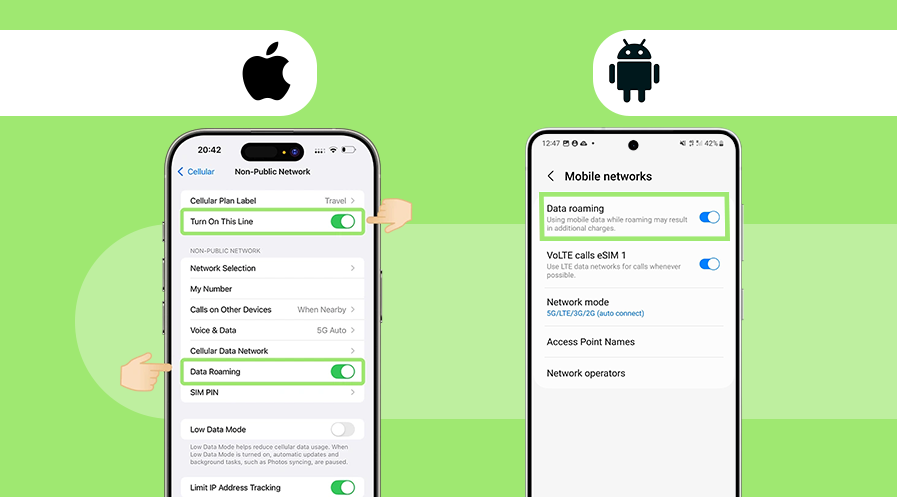
Before diving into detailed troubleshooting, try these steps first:
- Turn Data Roaming ON for your eSIM line
- Make sure the correct eSIM is selected as the primary data line
- Set APN manually (only if required by your provider)
- Restart your phone and wait 1–2 minutes for network registration
In most cases, completing these steps restores the connection immediately.
1) Check if your phone truly supports eSIM
Not every smartphone handles eSIM the same way. Some support multiple eSIM profiles, while others allow only one active at a time. A device may also be technically eSIM-capable but still carrier-locked, blocking activation from another provider.
Quick check: Confirm your model is on our supported list: Compatible Phones.
- iPhone: Settings → General → About → Network Lock. “No SIM restrictions” = unlocked.
- Android: Menu paths vary by brand; check eSIM support and carrier lock status in your phone’s settings.
Tip: If your device is locked, contact your original carrier to unlock it before installing any eSIM.
2) eSIM activation stopped or showed an error
If installation freezes or you see “Activation failed” / “This code has already been used,” do not delete the eSIM profile. Many eSIMs are one-time digital profiles; deleting them can prevent re-installation unless a new QR is issued.
- Keep the existing profile — do not remove it.
- Make sure your Wi-Fi didn’t drop mid-setup (partial installs can occur).
- Restart your phone, then open Settings → Mobile Network (or Cellular) → SIMs.
- If your eSIM appears in the list, wait a minute for network registration — no need to rescan.
- If it doesn’t appear and the QR can’t be reused, install manually with the SM-DP+ address and activation code from your provider.
Only contact support if the profile still doesn’t appear after a reboot and manual attempt.
Important: Never remove your eSIM unless a support agent explicitly tells you to.
3) Mobile data or data roaming is turned off
Your eSIM may install correctly yet fail to connect if Data or Data Roaming is off. Most travel eSIMs require roaming to be enabled — even domestically in some cases.
How to enable quickly
- iPhone: Settings → Cellular (Mobile Data) → your eSIM line → Data Roaming = On. Then toggle Airplane Mode On → Off.
- Android: Settings → Network & Internet → SIMs (or Mobile Network) → your eSIM → Mobile Data / Roaming = On. Then toggle Airplane Mode On → Off.
Official references: Apple – Cellular data & data roaming, Google – Manage mobile data & roaming.
4) Your phone might be carrier-locked
A carrier lock prevents using SIMs/eSIMs from other providers — a very common reason for activation failures.
- iPhone: Settings → General → About → Network Lock → “No SIM restrictions” = unlocked.
- Android: Check with your brand’s support or your original carrier. Many carriers unlock in ~24–72 hours.
5) eSIM shows signal, but there’s no data (APN settings)
Often the eSIM installs fine, but mobile data doesn’t work due to APN (Access Point Name) settings. Most phones apply APN automatically, but some networks require manual input.
Where to check
- iPhone: Settings → Mobile Data → Mobile Data Network (APN field)
- Android: Settings → Network & Internet → Mobile Network → Access Point Names
If APN is blank or incorrect, create a new APN using the details from your provider (e.g., apn.example.com), save, restart, and test again.
Step-by-step APN setup guides:
Note: APN usually applies automatically within a few minutes; configure it manually only if data still won’t connect.
6) Weak coverage or delayed network registration
Sometimes the issue is environmental: poor indoor coverage, underground locations, or airport transitions can block signal temporarily.
- Enable Automatic Network Selection.
- Switch temporarily from 5G → 4G/LTE (some regions lack full 5G roaming support).
- Move closer to a window or step outside.
- After landing internationally, wait 2–3 minutes for registration.
How to avoid eSIM issues next time
- Activate while on a stable, fast Wi-Fi network.
- Keep your QR and manual activation details (SM-DP+, Activation Code, APN) safe.
- Never delete the eSIM profile unless support instructs you to.
- When changing phones, use the provider’s app/transfer option — not the old QR.
- Verify device compatibility in advance: Compatible Phones.
If you need a new plan later, you can naturally explore our eSIM destinations and plans before you travel.
FAQ
Why does my eSIM show “No Service”?
Usually because mobile data or data roaming is off. Turn both on, then toggle Airplane Mode On → Off and wait ~10 seconds.
What should I do if I see “This code has already been used”?
Don’t delete the eSIM. Restart your phone and check the SIM list. If it’s not listed, install manually using the SM-DP+ address and activation code provided by your eSIM service.
Do I need to configure APN manually?
Usually no — APN applies automatically. If data still doesn’t work, set it manually with your provider’s details.